

Every program manager knows the end-of-week scramble. The real work happened in meetings: a weekly sync with the customer, a data security working session, an internal operations call where the team walked through every account. Then someone has to turn all of that conversation into a crisp update that an executive can read in two minutes. It is important work, and most of it is recall and reformatting.
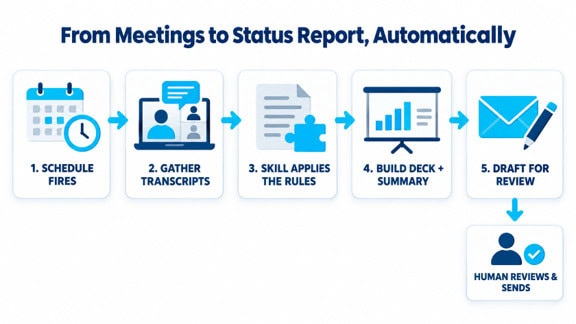
At Mobile Mentor we run IT projects & programs for a portfolio of customers across higher education, healthcare, nonprofits and retail. Each customer receives a status update every two weeks, delivered as a short, written summary and a branded slide deck. Producing those by hand meant re-reading notes, scrubbing through recordings and copying the same facts between documents. Today a scheduled automation in Copilot produces the first draft for every customer, and my team reviews and sends.
This article walks through how I set it up, what I learned designing the skill behind it, and the gotchas that only appeared once it was running for real. None of it requires a developer. It does require being deliberate about where each rule lives.

The three building blocks
The setup rests on three pieces. Understanding the job each one does is the most important design decision you will make, because putting a rule in the wrong place is what makes an automation brittle.
A project is the home base. It holds the standing instructions that apply to every task in the program, references to the meetings and files the work depends on, and a running memory of decisions. When I open a new task inside the project, Copilot already knows who the customers are, which meetings matter and what the house rules are.
A skill is the repeatable recipe. It describes how to build one status update for one customer: which sources to read, how to structure th
e output, what tone to use, and the scripts and brand assets that produce the deck. A skill is portable. The same skill could serve a different program with different project instructions.
A scheduled automation is the trigger. It runs a self-contained prompt on a cadence (in my case every other Thursday afternoon) and invokes the skill once per customer, with nobody at the keyboard.
My rule of thumb: the project knows what is true about this program, the skill knows how to do the job well, and the schedule knows when to do it and for whom.
Step 1: Make the project your single source of truth
Start with the project, not the skill. Before writing any instructions, I attached the recurring meetings that feed the reports: our internal Copilot Ops meeting, which runs every Wednesday and covers all customers, and each customer’s weekly sync. Then I created one small file that turned out to be the most valuable artifact in the whole setup: a current-customers list.
That file is a simple table with one row per customer. Its columns hold the contracted workstreams, the customer contacts who receive the update and the project managers who are copied. Everything that changes over time lives there. When we onboarded a new customer this fall, adding the account was a one-row edit, and the next run picked it up. When a contact changed, nobody had to touch the skill or the schedule.
The project’s standing instructions cover program-level rules: the default reporting window, which sources are required, how to resolve conflicts between sources, and what the audience should and should not see. Write them as short, testable statements. “Executive audience, under a two-minute read” is useful. “Make it look professional” is not.
Finally, let the project keep a memory. Each time we made a decision during a task (a customer’s official name, which meetings can be read, a naming rule for logo files), it was recorded in the project memory. The next task started with that context instead of rediscovering it.
Step 2: Design the skill
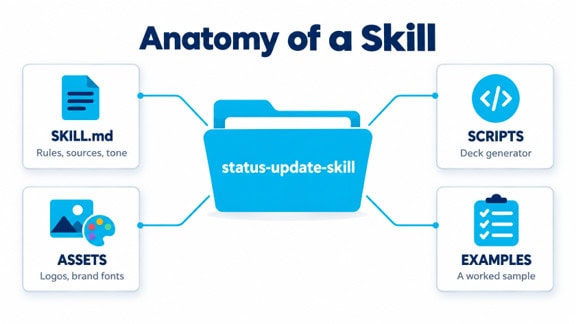
A skill is a folder with a clear anatomy. At its center is a written instruction file that captures the rules, sources and tone. Around it sit the scripts that do deterministic work, the brand assets the output needs, and at least one worked example that shows what a finished update looks like.
Designing ours took several iterations. These are the lessons that made the biggest difference.
Separate content from layout
My first instinct was to let Copilot design the slides each time. The results were creative and inconsistent. Moving the layout into a bundled deck generator with a fixed brand format changed everything. Now the script owns fonts, colors, logo placement and slide order, and the model’s job narrows to judgment: what happened, what matters and what is at risk. Every deck looks the same in structure, which is exactly what a recurring report should do.
Fix the structure so readers can scan
Every update uses the same five workstreams in the same order: Business Analysis, Data Security, User Empowerment, Agents & Integrations, and ROI & Governance. If nothing happened in a workstream, the update says “Not yet started this period” rather than letting the section quietly disappear. Later we added a second state, “Not in current scope”, for workstreams a customer has not contracted. Those still appear on the summary dashboard, but their detail slide is skipped, so a smaller engagement gets a shorter deck. Consistency across customers and across periods is what lets an executive compare at a glance.
Name your sources and rank them
The skill reads two kinds of transcript. The internal ops meeting covers every customer, so the skill must isolate the one customer being reported and ignore the rest. The customer’s own weekly sync, plus any workstream sessions such as data security or training, provides the customer-facing view. When the two disagree, the customer-facing meeting wins, because that is what the customer actually heard.
Write the audience rules down
An executive summary is a genre with rules, and the skill needs them spelled out. Ours says to use bullets, favor counts over names, frame risks as decisions the customer can make, and stay under a two-minute read. Just as important is the exclusion list: internal topics such as hours, margin and staffing never appear in a customer update. If you do not write the exclusions down, a faithful transcript summary will happily include them.
Make “no fabrication” enforceable
“Don’t make things up” is a wish. “Verify every count and percentage with code, and render every slide for a visual check before delivery” is a procedure. The skill treats the transcripts as the only source of facts. If something was not said in a meeting, it does not go in the report.
Plan for missing data
Transcripts are not always available. In our case, meetings hosted in a customer’s own Microsoft 365 tenant often cannot be read from ours, even when we attended. Rather than failing, the skill builds from what it can read and names the meetings it could not, in the note it returns to the reviewer. A visible gap is far better than a silent one, because the reviewer knows exactly where to add context.
Lock down conventions
Unattended scripts depend on predictable names. Deck files follow one pattern: customer name, program name and the reporting dates. Customer logos follow a strict rule (lowercase words separated by dashes, no spaces) so the generator can find each one without guesswork. If a logo is missing, the deck still builds and the delivery note says so.
Keep one canonical name
Partway through, we renamed the skill to follow a lowercase naming standard and then discovered that an older published copy existed under the same name, without our latest changes. Pick the canonical name early, keep a single source of truth and retire old copies deliberately.
Step 3: Define the output and the hand-off
Each run produces two things per customer. The first is a short text update for internal review. The second is the branded deck, which is attached to an Outlook draft addressed to the customer contacts from the current-customers file, with the assigned project managers copied. The email body is intentionally brief, three lines with the reporting window filled in:
All,
Here is your program update for Oct 19, 2026 to Oct 30, 2026
Thanks!
The most important rule in the whole design is that the automation creates drafts and never sends. The AI does the assembly; a person does the part that needs judgment and relationship context. The reviewer reads the deck, adjusts any nuance and clicks send. Draft-only also keeps internal review notes, such as the list of unreadable meetings, out of the customer’s inbox.
Step 4: Schedule the automation
With the project and skill in place, scheduling is the easy part, but there are a few ins and outs worth knowing.
Match the cadence to the reporting window
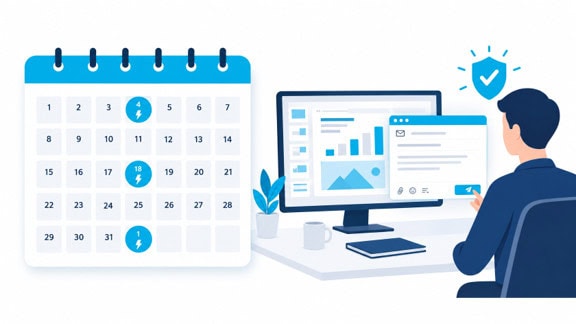
Our window runs from Monday of week one to Friday of week two. The automation runs on Thursday afternoon of week two, so the drafts are waiting while there is still time to review them before the period closes. If an ops meeting is skipped, the skill stretches the window and states the actual period covered.
Write the prompt as if for a stranger
A scheduled run starts in a fresh session with no memory of the conversation where you set it up. The prompt must be self-contained: who the report is for, which sources to read, the time window, the output format and what to do when nothing new happened. Running each cycle in a fresh session is a feature, because every run re-derives what it needs from the current state of the project.
Do not hard-code what the project already knows
Our first scheduled prompt said “all six current customers.” When we added a seventh, the prompt was wrong while the customer file was right. The better wording is “every customer in the current-customers file,” which lets the project stay the single source of truth.
Pre-approve only what the run needs
An unattended run that hits an approval prompt simply waits for someone who is not there. Decide in advance which actions the automation may take and grant only those. Because ours only creates drafts, the permissions it needs are narrow, which is another argument for draft-only.
Check the first run date
When I first created the biweekly schedule, it ran immediately and anchored the following runs to that day, which put it off our reporting cycle. We removed it and set it up again so the first run would land on the correct Thursday. After creating any schedule, confirm the next run date before you walk away.
Step 5: Run it by hand before you trust it
Before letting the schedule loose, run the skill manually for each customer for a cycle or two and read every output closely. Our manual runs surfaced a customer whose official name differed from the one we used internally, logo placement rules that needed refining, and an email body that was far longer than it needed to be. Each fix went into the skill or the project instructions rather than becoming a one-off correction, so it never had to be fixed twice.
Manual runs are also how you recover when life gets in the way. When we missed a reporting cycle, the same skill backfilled the missing periods for every customer in one sitting, with one draft per customer carrying both decks.
What changed
The biggest shift is where my team’s time goes. Instead of assembling updates, they review them. Reports go out on a predictable rhythm, every customer gets the same structure, and gaps in our information are visible instead of hidden. Just as valuable, the design decisions we made along the way are captured in the project and the skill, so the process improves every cycle instead of living in one person’s head.
A starter checklist
- 1
Create a project and attach the recurring meetings and reference files the reports depend on.
- 2
Build a small source-of-truth file for anything that changes: customers, contacts, scope and owners.
- 3
Write standing instructions as short, testable rules about the window, sources, audience and exclusions.
- 4
Design a skill that separates content from layout, bundles brand assets and includes a worked example.
- 5
Fix the report structure so every section always appears, even when it is empty or out of scope.
- 6
Make accuracy a procedure: verify numbers with code, review every slide and name any missing sources.
- 7
Deliver drafts, not sends, and keep a person in the loop.
- 8
Schedule a self-contained prompt, pre-approve only what it needs and confirm the first run date.
- 9
Run it by hand for a cycle or two, and fold every correction back into the skill or project.
If you are running recurring meetings and recurring reports, you already have everything this pattern needs. The transcripts exist; the structure is in your head. Writing that structure down once, in the right places, is what turns a weekly chore into a reliable system.
I would love to hear how others are approaching this. If you are building something similar, or want to talk through how it could work for your organization, connect with me here or reach out to the Mobile Mentor team.