

Recently, I came across a LinkedIn post that struck a familiar chord. Someone had updated a security baseline in Microsoft Intune and lost all their custom settings in the process.
If you’ve worked with Intune baselines before, you know this isn’t a rare scenario. But here’s the thing: it’s not a bug, and it’s not a failure of the platform. It’s expected behavior.
Baselines Are Templates, Not Config Managers
By default, Intune baselines are designed to function like templates. When you apply a new version, it doesn’t merge or preserve your customizations, it simply overwrites them. No prompts. No warnings. Just business as usual.
That can be a jarring realization if you’re caught off guard. But the real lesson here isn’t about how Intune works. It’s about how we prepare for changes.
Planning Makes All the Difference
Updating security baselines should never be a shot in the dark. If there’s no change control, no backup, no test group, and no rollback plan, even a simple update can feel like a catastrophe.
So, what can you do to avoid that scenario? Here’s a solid starting point:
1. Backup Your Current Configuration
Before making any changes, export your Intune settings, policies, scripts, and profiles. Keep them organized and version-controlled. This gives you a clean reference point if things go sideways.
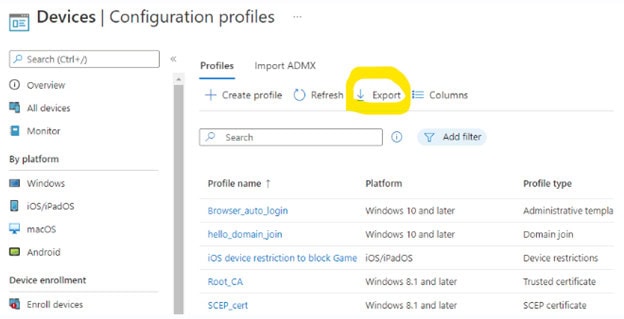
Image Source: https://learn.microsoft.com/en-us/answers/questions/1002670/export-single-configuration-profile-%28settings-cata
1. Backup Your Current Configuration
Before making any changes, export your Intune settings, policies, scripts, and profiles. Keep them organized and version-controlled. This gives you a clean reference point if things go sideways.
2. Use a Device Grouping Strategy
Always test changes in isolated pilot groups before rolling them out tenant-wide. A small-scale test can help you catch unexpected behavior without putting your entire environment at risk.
3. Prepare Revert Scripts or Manual Rollbacks
Whether it’s a PowerShell script or a checklist of manual steps, have a rollback plan ready. Don’t wait until you’re in damage control mode to start figuring one out.
4. Build a Communication Plan
Changes shouldn’t be a surprise for your team or your end users. Let everyone know what’s changing, when it’s happening, and how to get help if something breaks.
Conclusion
If your current strategy is “click and pray,” it’s time to rethink it. Intune is powerful, but like any tool, it rewards preparation. A bit of planning can mean the difference between a smooth update and hours of unplanned troubleshooting.